It's very important that the games you've curated are also backed by a review--even if it's a brief one. After all, if you're vouching for these games, you should be able to explain why.
To add a review to a game, follow these instructions:
- Go to the "Games" tab within your Nexus dashboard.
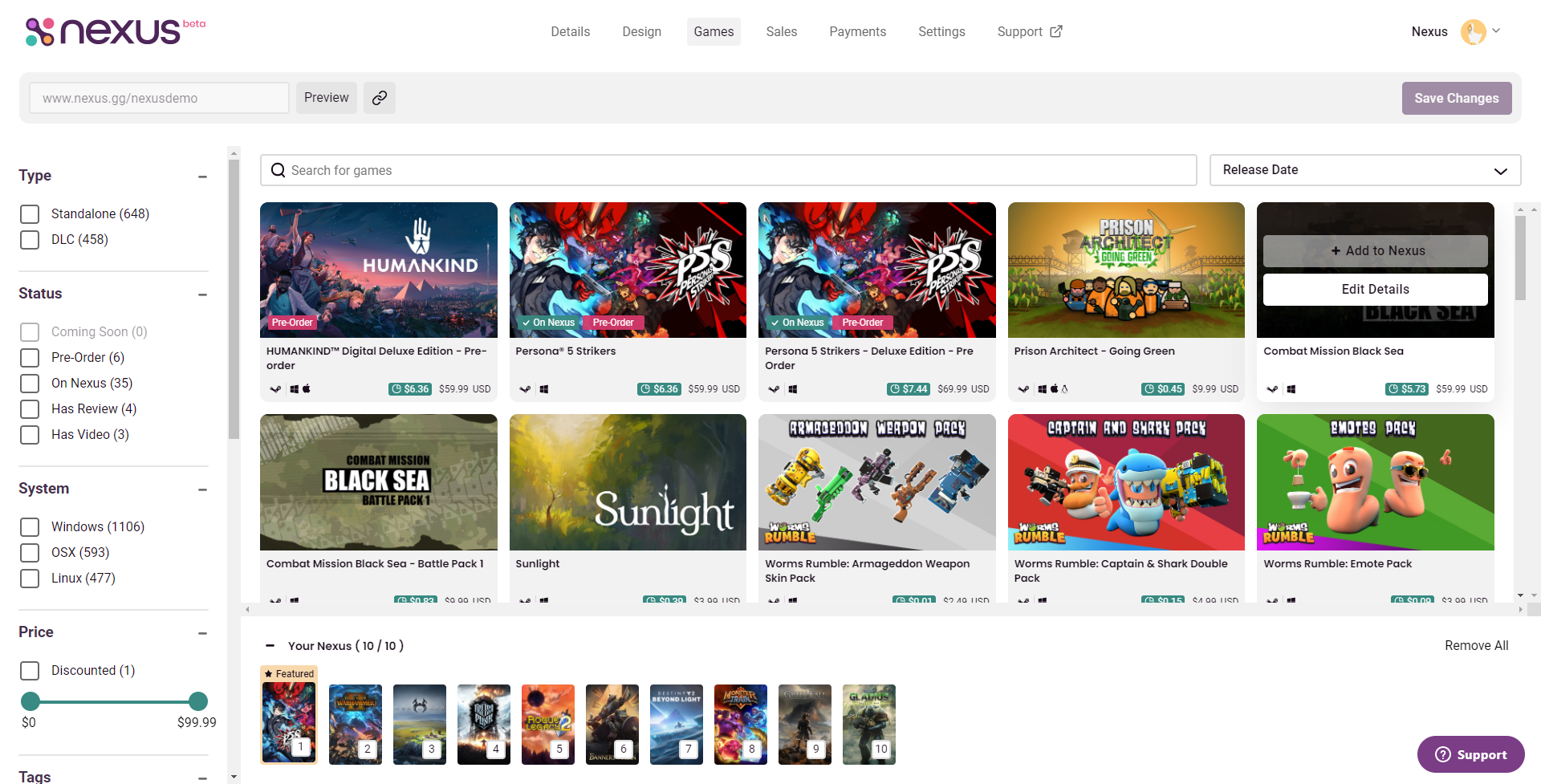
- Locate the game you are reviewing in the library, then click "Edit Details."
- You will be brought to the details screen. In the box labeled "Your Review," briefly share your opinions on the game (a maximum of 512 characters are allowed).
- Having trouble? Consider this article to be your guide.
To add video content to a game, follow these instructions:
- Go to the "Games" tab within your Nexus dashboard.
- Locate the game you are reviewing in the library, then click "Edit Details."
- You will be brought to the details screen. Here, you will see two options for video content.
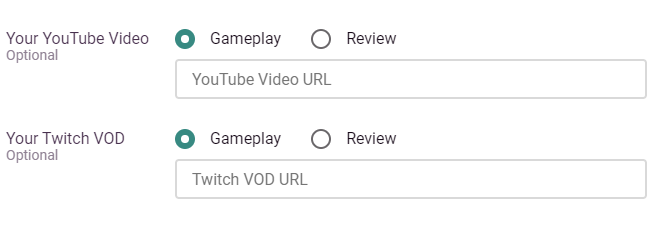
- Your video content doesn't have to be a "Review," specifically, and can be labeled "Gameplay" instead.
- When using the "Twitch Vod" option, you can use links to past broadcasts. However, since these links expire, we would encourage you to link Highlight vods instead. Clip links do not work with this feature.